Using the App
Positions
The Positions page lists what your copy trading strategies opened, with the P&L, the working orders, and the controls to add to a position, trim it, or close it.
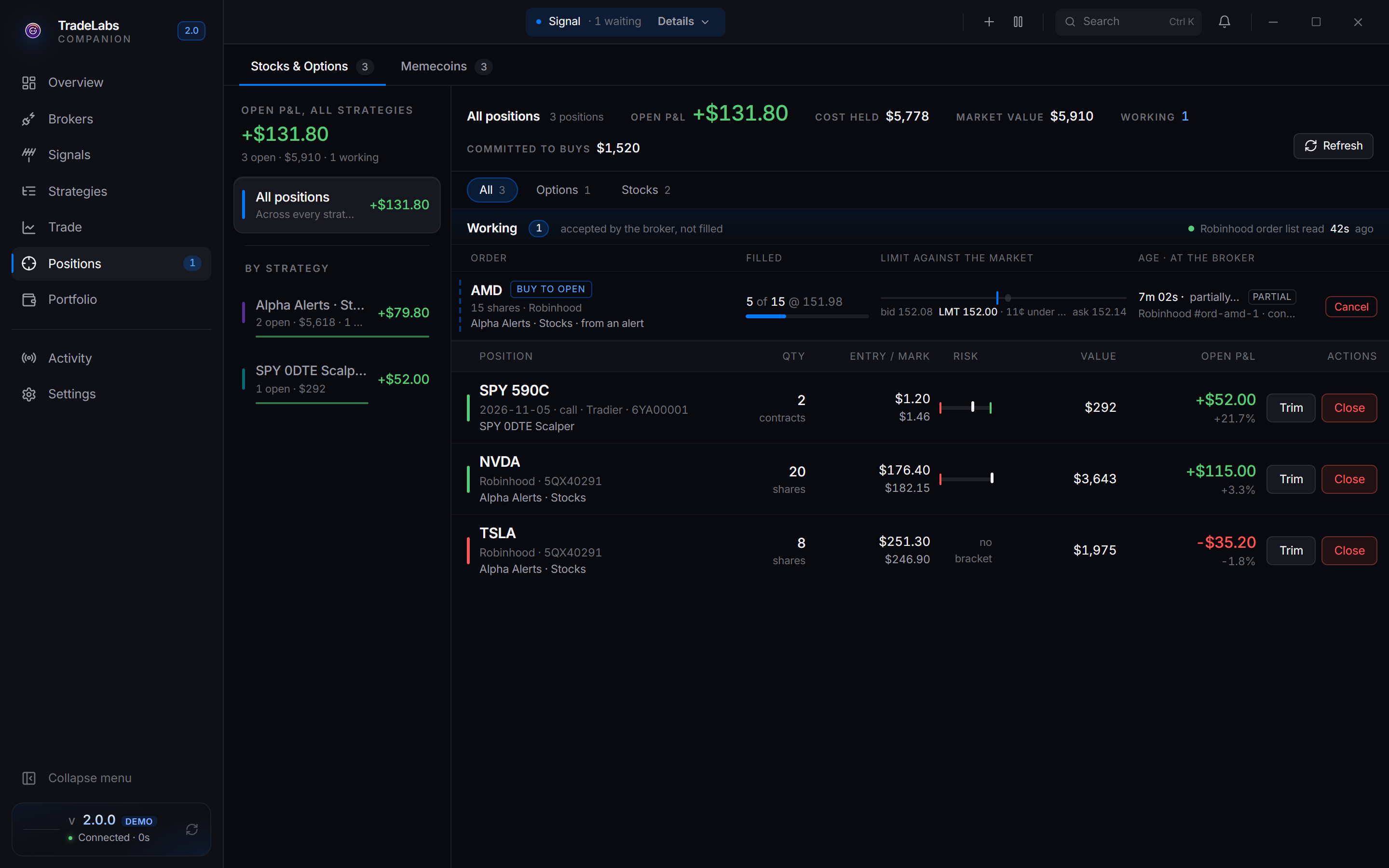
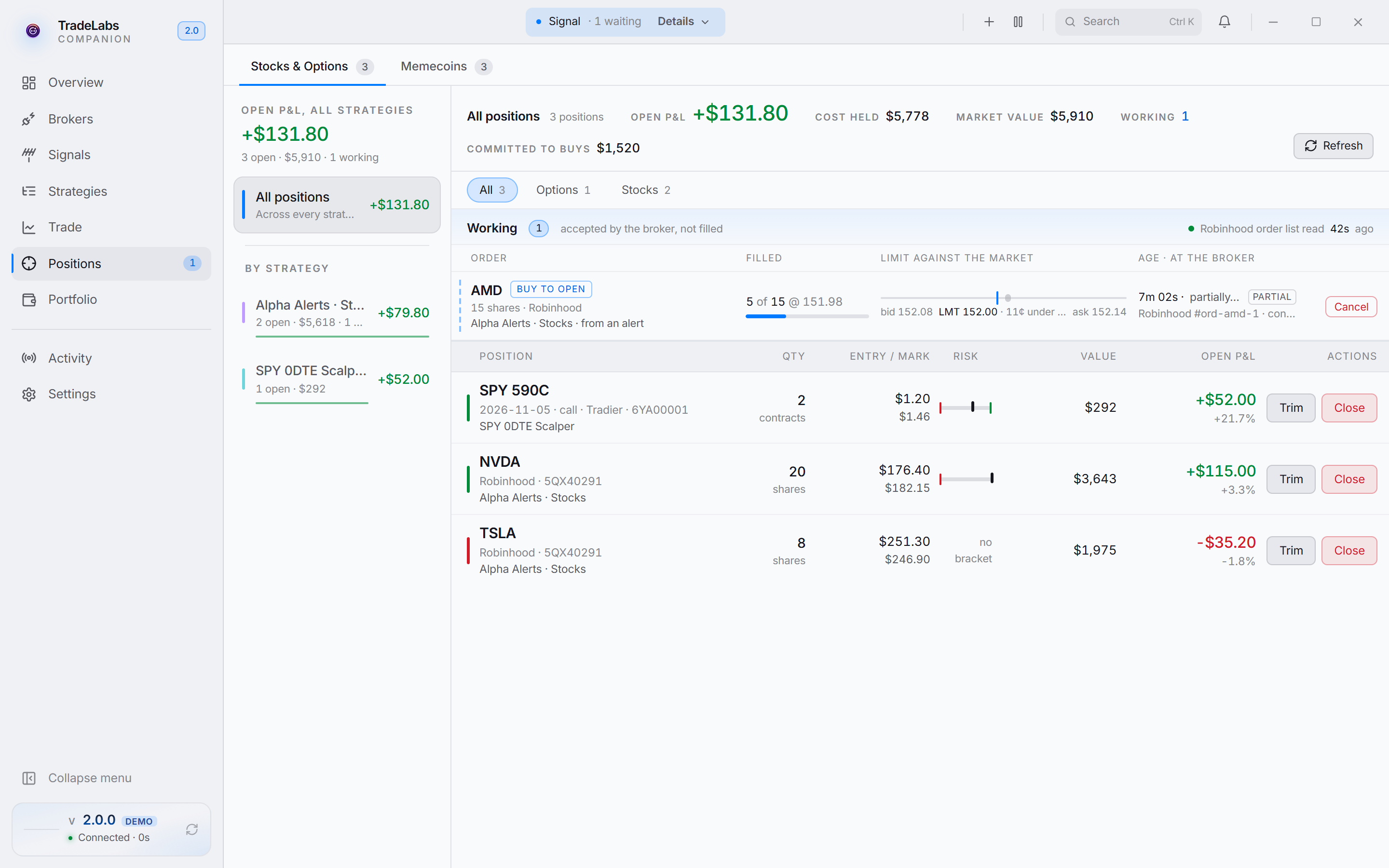
The Positions page shows the positions your strategies opened, grouped by strategy. Open it from the left rail. Holdings you opened yourself at a broker are on the Portfolio page.
The page has two tabs. Each tab shows its count:
| Tab | What it shows |
|---|---|
| Stocks & Options | Stocks, options, spreads and futures your strategies opened |
| Memecoins | Robinhood Chain and Solana coins, one row per wallet |
When there is nothing to show, the page reads No open positions yet.
The strategy rail
The rail on the left starts with Open P&L, all strategies and a line with the open count, the value held, and the number of working orders.
Under it, click a line to pick what the page shows:
- All positions shows everything your strategies opened.
- Needs a look shows the positions the broker did not confirm. It shows only when there is one or more.
- Each strategy shows its own P&L, its position count and value, and its working orders.
The pick also applies to the working orders and the Closed section.
The summary strip
The strip at the top gives the figures for the pick in the rail.
| Figure | What it means |
|---|---|
| Open P&L | The profit or loss on the open positions now |
| Cost held | What you paid for the open positions |
| Market value | What the open positions are worth now. A row with no price counts at its cost. |
| Realized 7d | The profit or loss on positions closed in the last 7 days. It shows when one of those sales has a price. |
| Working | The orders the broker accepted and did not fill yet |
| Committed to buys | The most the working buy orders can cost if they all fill at their limits |
| Unpriced | The rows the broker could not price |
| Needs a look | The rows the broker did not confirm |
Working, Committed to buys, Unpriced and Needs a look show only when they are more than zero.
Click Refresh to read fresh holdings and orders from every broker that holds one of these positions. While it reads, the button shows Reading brokers.
When the list holds more than one kind of position, chips under the strip filter it: All, then one chip per kind, each with its count.
The position rows
Each row shows:
| Column | What it shows |
|---|---|
| Position | The ticker or contract, the broker, and the account |
| Strategy | The strategy that opened it. On one strategy’s view, the open date, or “N of M here” when strategies share the position. |
| Qty | The quantity held. A bar under it shows how much of the first position is still held. |
| Entry / Mark | The average price paid and the last price |
| Risk | Where the mark is between the stop and the target. It reads no bracket when the position has neither, and unpriced when there is no mark. |
| Value | The value now. A row with no price shows its cost, marked cost. |
| Open P&L | The profit or loss in dollars and percent |
| Actions | Trim and Close, or Dismiss, or View only |
A tag next to the name tells you more:
- closing or trimming: the broker took your close or trim and did not fill it yet. The row changes when the fill comes in.
- A working order tag: an order is still working on this position. Click it to go to the order.
- closed: the broker does not hold this now. It was closed outside the app.
- no price: the broker did not confirm this position. Move the pointer over the tag to see why.
Close a position
Close sells the whole position at market. The app asks you first: Close TICKER?, with the quantity and the broker. Click Close position to send the order.
Close places a real market order. If the broker refuses it, you see Nothing was sold with the reason.
What “Needs a look” means
A position needs a look when the app cannot match it to a broker position. There are two cases:
- closed: the broker answered and does not hold the position. It left the account at that broker and the app did not sell it. Click Dismiss to remove the row. Dismiss sends nothing to the broker.
- no price: the app cannot tell. The broker could not be reached, the login could not be read, or the broker does not list this kind of position. The quantity on the row comes from the app’s own records.
Memecoins and prediction markets show View only. Sell them from the Trade page.
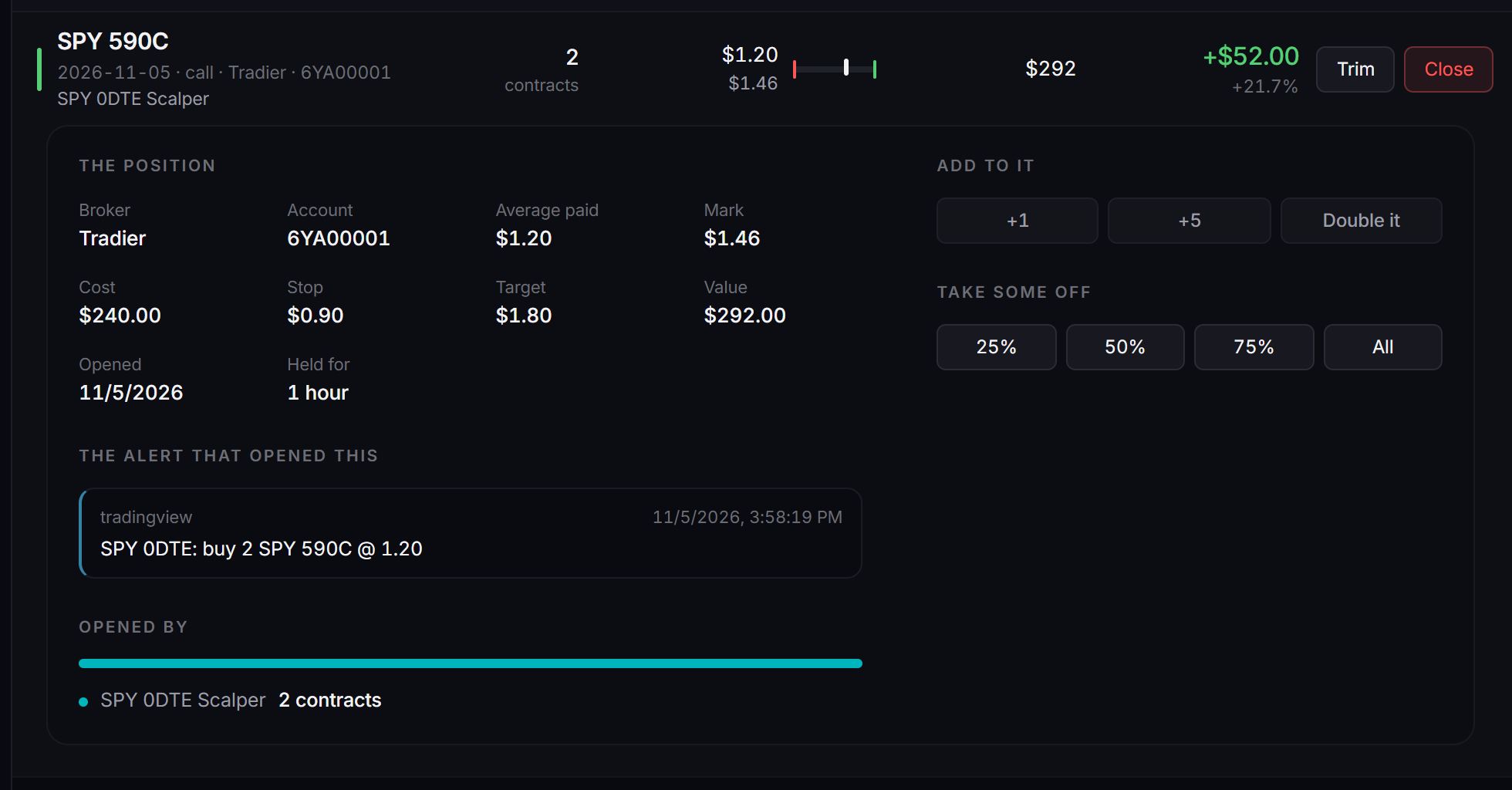
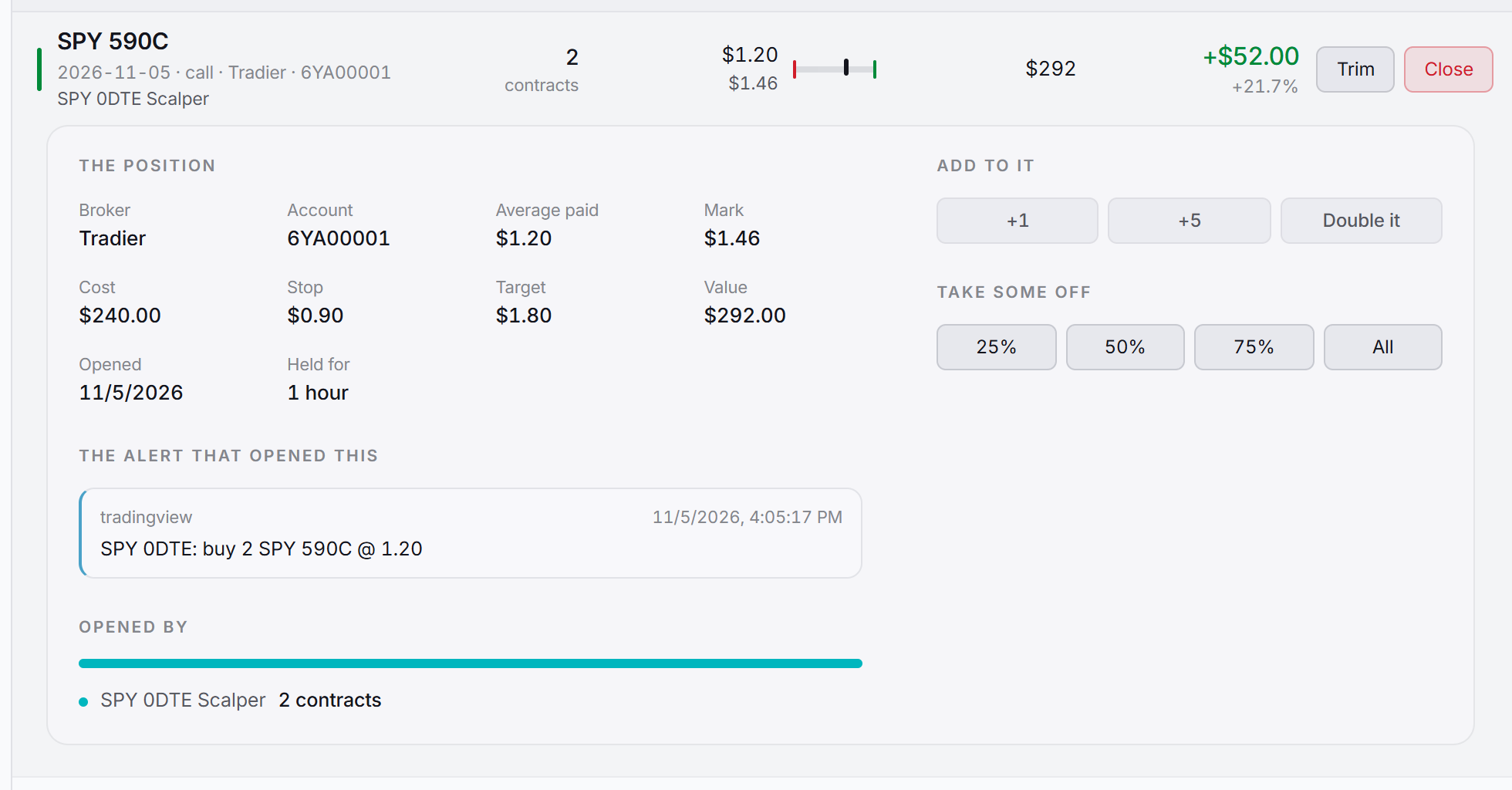
The detail panel
Click a row to open its detail. It shows:
- The position: broker, account, average paid, mark, cost, stop, target, value, the open date, and how long you held it.
- The alert that opened this: the message from your signal source. If the alert is older than the Activity history, the panel says so. If no signal opened it, the panel says it was opened by hand.
- Opened by: each strategy and its share of the position.
- Already sold: each earlier sale, with its date, quantity and price.
Add to it
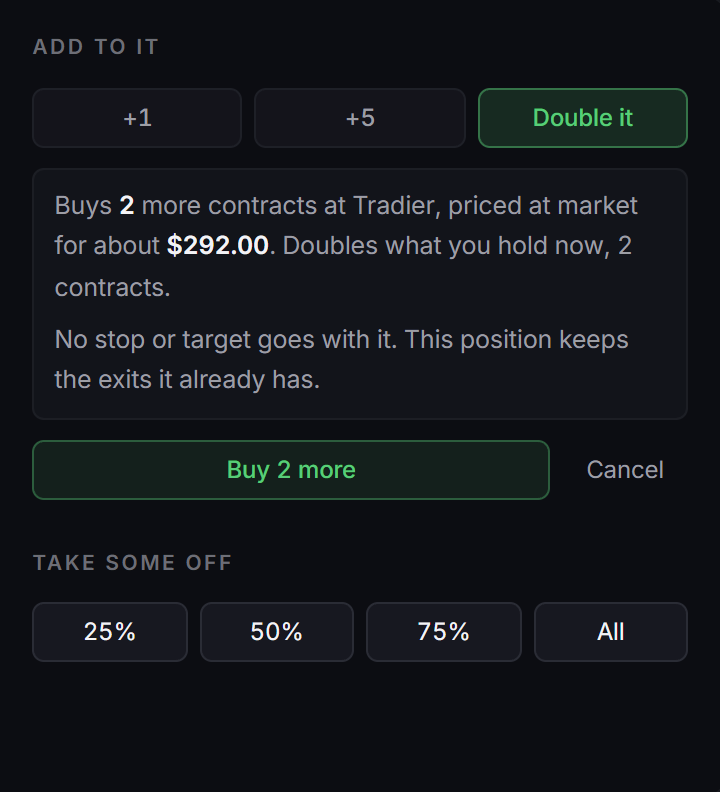
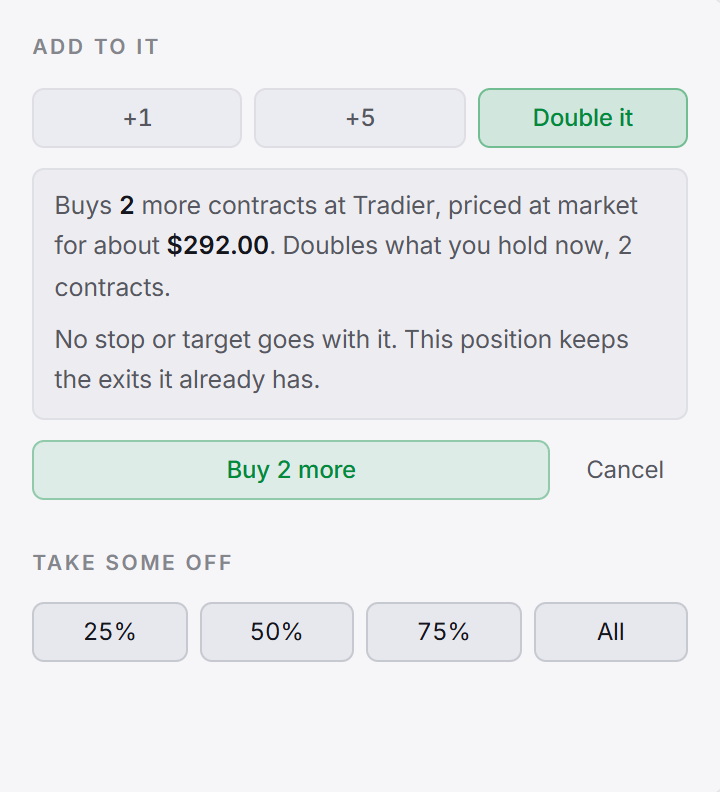
Pick +1, +5 or Double it. A preview says how many it buys, at which broker, and about what it costs at the last price. Double it buys the quantity you hold now. No stop or target goes with the order. The position keeps the exits it already has. Click Buy N more to send it, or Cancel.
A spread that does not record which leg was bought cannot be added to here. Use the Trade page.
Take some off
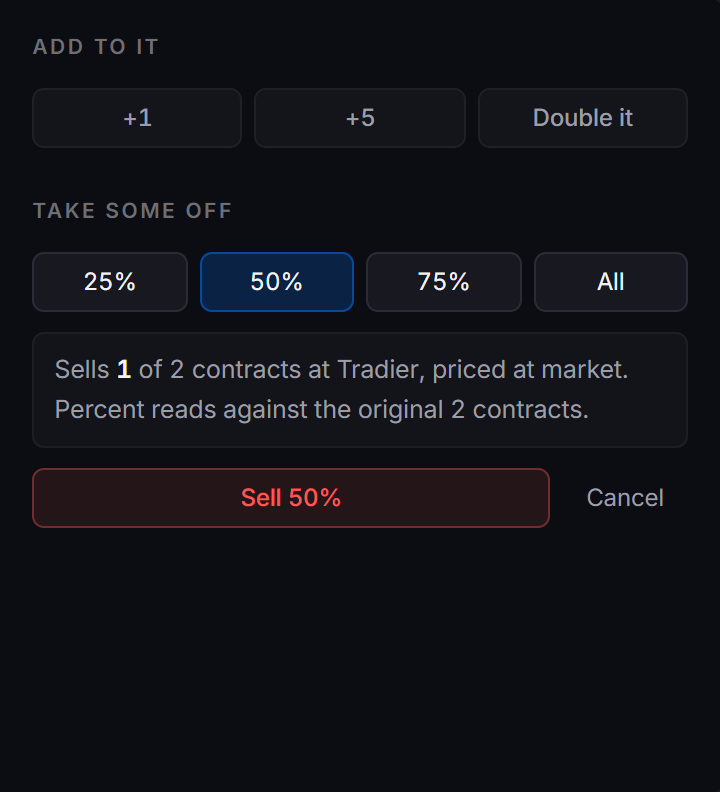
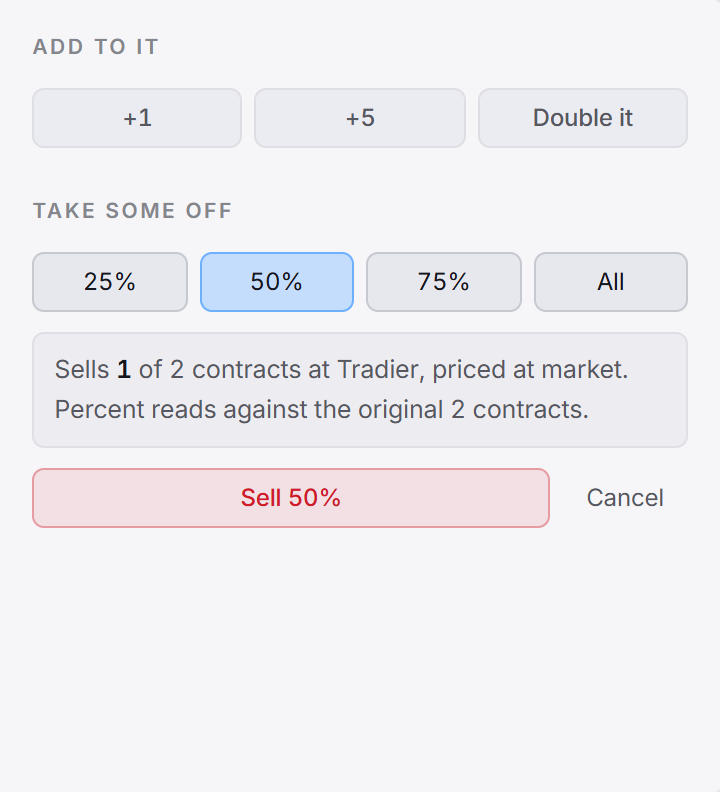
Pick 25%, 50%, 75% or All. The percent reads against the quantity you first opened. A preview says how many it sells, at which broker, priced at market. When strategies share the position, it says how much comes from each one. When the amount takes the rest, the preview says it closes the position. Click Sell N% or Close position to send it, or Cancel.
Working orders
The Working band sits above the rows. It lists the orders the broker accepted and did not fill yet, with how much filled, the limit against the market, how long it has worked, and what the broker says. It also says when the app last read each broker’s orders.
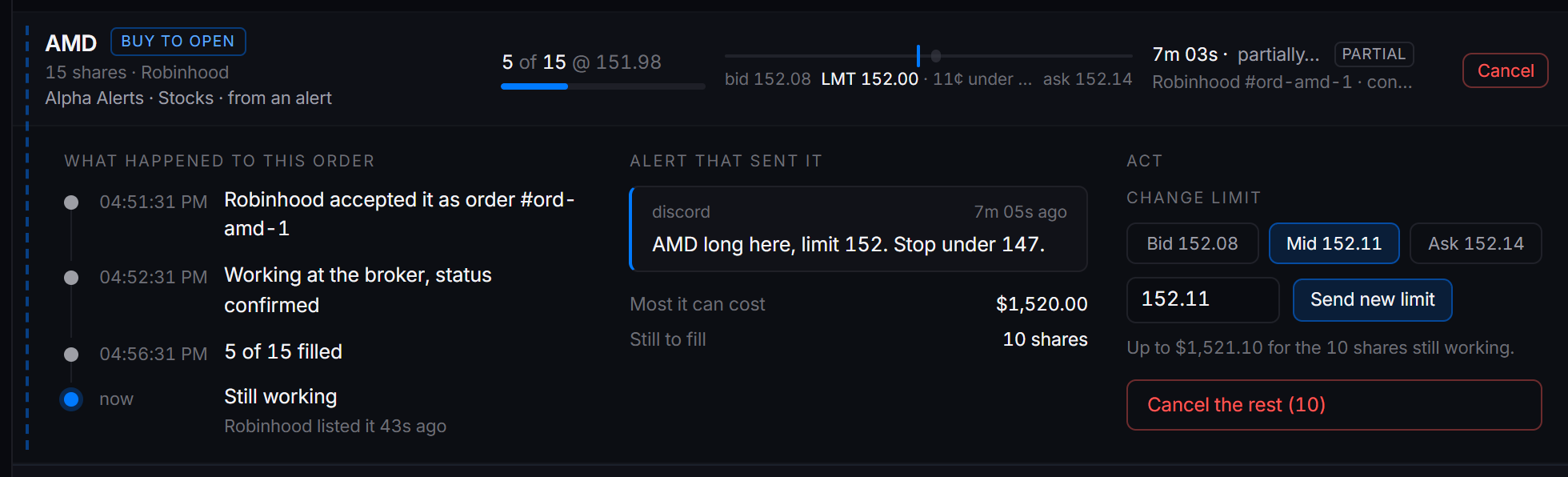
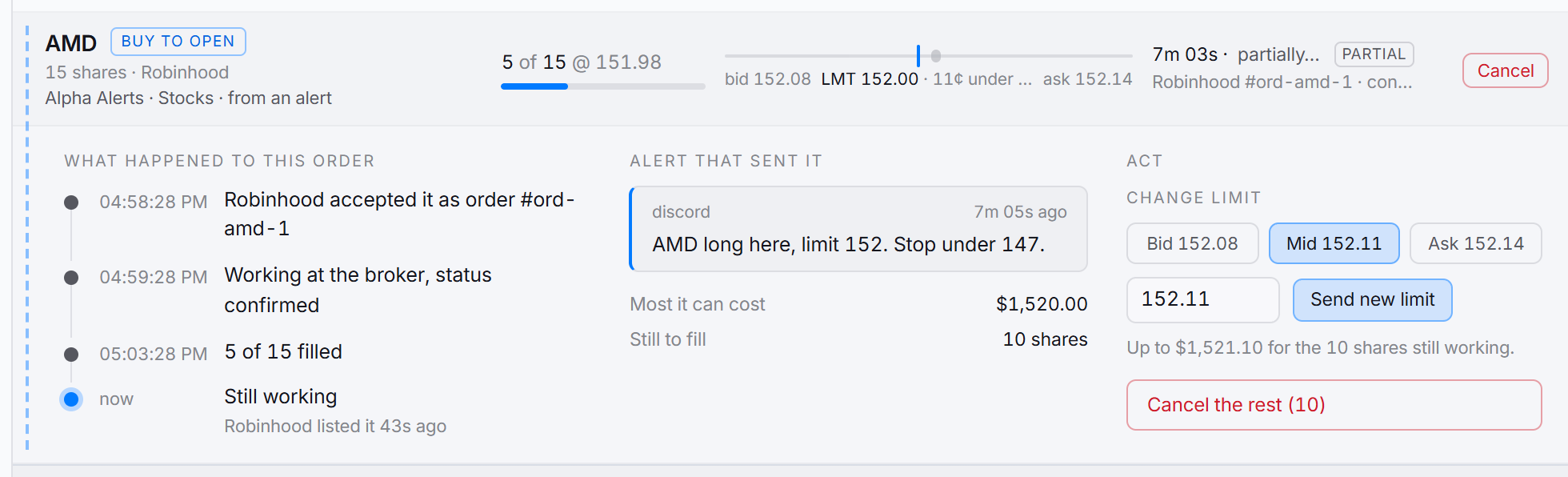
Click an order to open it. The detail shows its history, the alert that sent it, the most it can cost or brings in at the limit, and how much is still to fill. Under Act:
- Change limit sets a new limit price. Click Bid, Mid or Ask to fill in the current quote, or type a price. Click Send new limit. A price at or through the ask on a buy, or at or through the bid on a sell, asks you first, because it most likely fills at once.
- Cancel order cancels it. When part already filled, the button reads Cancel the rest (N). The filled part stays filled. The app asks you first. Click Keep it to leave the order.
The row also has a Cancel button. You can cancel or change only an order the broker gave an id for.
Closed
The Closed section lists the positions closed in the last 7 days, with the total realized. Each row shows the quantity, the price in and out, the realized profit or loss, and when it closed. A row tagged at broker was closed outside the app, so its sale price is not known. A sale with no price shows a dash, not a zero. Click Show all N to see more than 8.
Finished in the last day lists the orders that ended in the last 24 hours: filled, cancelled, refused, or unknown. Each row says what the broker said.
How positions are tracked
The page reads a ledger the app keeps on your computer. A fill goes into the ledger only when the app knows how much filled:
A close or trim from this page works the same way. When the broker accepts the order but sends no filled quantity, the row stays and shows closing or trimming. The order also shows under Working. The fill takes the shares off the row when it comes in. If the broker fills it and says nothing, the next read sees the position is gone and closes the row.
The app records the quantity the broker says filled. If the broker gives no filled quantity, the app records the quantity you asked for on a share or contract order. A partial fill then looks like a full one, and exits are sized from that quantity. An order sized in dollars or percent is not recorded when the broker gives no filled quantity. See Why does a position show the full size.
Memecoins
The Memecoins tab shows one row per wallet, with the holding, value, P&L and exits. See Robinhood Chain on the Positions page for the full tab.
Solana rows show View only. Sell Solana coins from the Trade page.