Brokers
Interactive Brokers
Set up Interactive Brokers for TradeLabs from scratch: an IBKR Pro account, funding, the OPRA and Cboe One market data subscriptions, cash vs margin, installing TWS or IB Gateway, the exact TWS API settings, and connecting it in the app.
Interactive Brokers connects through Trader Workstation (TWS) or IB Gateway, the desktop software IBKR gives you, running on the same computer as TradeLabs. TradeLabs talks to it over a local connection at 127.0.0.1. There is no API key to paste. What you do need is an IBKR account set up correctly on their website and a few API settings switched on inside TWS or IB Gateway. Most people’s problems come from skipping one of those, so this page walks through every one.
| What it trades | Supported |
|---|---|
| Stocks | Yes |
| Options | Yes |
| Spreads | Yes |
| Futures | Yes |
| RSA, crypto, memecoins | No |
Break alerts wait for the break on IBKR. Turn on Wait for the break in a strategy’s Protections, and an alert like “NUR @ $4.15 BREAK” places an order that waits at IBKR and buys only once the price reaches 4.15. See Protections.
The whole setup at a glance
Work through these in order. Steps 1 to 4 happen on the Interactive Brokers website, steps 5 and 6 in TWS or IB Gateway on your computer, and step 7 in TradeLabs.
- Use an IBKR Pro account, not IBKR Lite.
- Fund the account with at least $500.
- Subscribe to market data: OPRA for options and Cboe One for stock quotes.
- Pick cash or margin. Under $25,000, a cash account avoids Pattern Day Trader limits, but spreads need margin.
- Install TWS or IB Gateway and sign in.
- Enable the API in TWS or IB Gateway: socket clients on, Read-Only API off, trust
127.0.0.1. - Connect it in TradeLabs in the mode (Live or Paper) that matches how TWS or IB Gateway is running.
1. Use an IBKR Pro account
Interactive Brokers has two pricing plans, IBKR Lite and IBKR Pro. TradeLabs is built and tested against IBKR Pro, which is IBKR’s plan for active and API trading and the one that gives you the real-time market data subscriptions in step 3.
New to IBKR: go to interactivebrokers.com, click Open Account, and choose IBKR Pro when the application asks for a pricing plan.
Already have an account: check which plan you are on, and switch if it says Lite.
-
Sign in on the Interactive Brokers website.
-
Click your name in the top-right corner and open Settings.
-
Under Account Configuration, find IBKR Pricing Plan. It shows either IBKR Lite or IBKR Pro.
-
If it says Lite, click it and follow IBKR’s prompts to switch to IBKR Pro.
2. Fund the account
Fund the account before you subscribe to market data or trade. IBKR bills market data out of your account balance, and a subscription on an empty account will not activate.
- Minimum: keep at least $500 USD in the account. More is better, so you have room for market data fees and your actual trades.
- Adding money: on the IBKR website, open Transfer & Pay → Transfer Funds (older layouts call it Funds Management) and follow the deposit steps.
3. Subscribe to market data
This is the step people skip, and it is the one that breaks options trading. Without a market data subscription, IBKR will not send TradeLabs live option prices, and trades fail with “Market price data is not available.”
You need two subscriptions:
| Subscription | What it gives you |
|---|---|
| OPRA Top of Book (L1) (US Options Exchanges) | Real-time option quotes and option chains. Required for options and spreads. |
| Cboe One (NP, L1) | Real-time US stock quotes. |
-
Sign in on the Interactive Brokers website.
-
Click your name in the top-right corner and open Settings.
-
Find the Market Data Subscriptions section on the settings page.
-
Click the Configure button, the gear icon in the top-right corner of that section.
-
Scroll to the Level 1 (NBBO) list and tick:
- OPRA (US Options Exchanges) (NP,L1)
- Cboe One (NP,L1)
-
Click Continue at the bottom of the page and accept IBKR’s subscriber agreements.
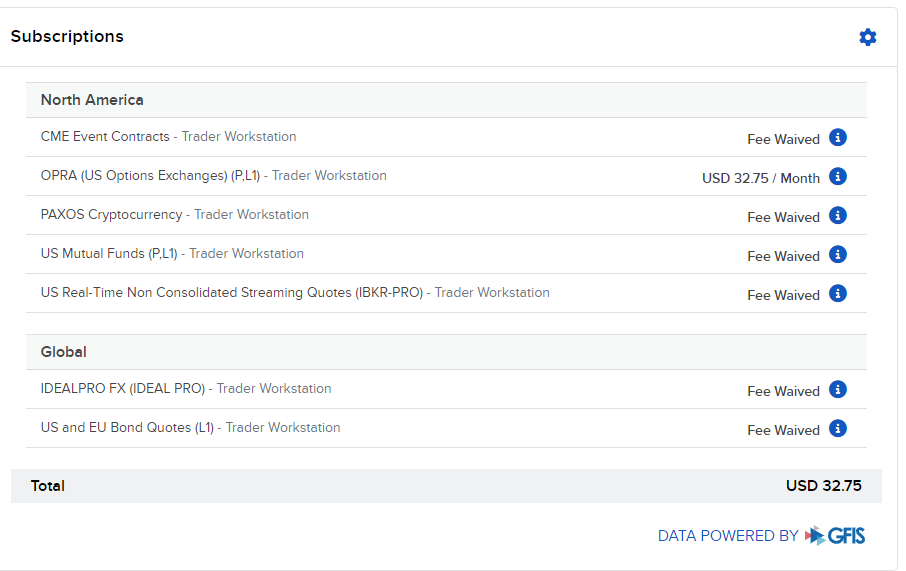 The Subscriptions panel on the IBKR website. The gear icon in the top-right corner opens the list where you add OPRA and Cboe One. This screenshot is from a professional account, which is why OPRA shows $32.75.
Answer the “professional” questions honestly, but know what they cost. IBKR asks whether you are a non-professional or professional subscriber. Most individuals are non-professional (NP), which costs a few dollars a month per subscription. Professional pricing (marked P) is many times higher. OPRA, for example, is $32.75/month for professionals. IBKR shows the exact current price next to each item before you confirm.
Using a paper account? Paper accounts do not get their own market data. On the IBKR website, open Settings → Paper Trading Account and turn on sharing your live account’s market data with the paper account. Otherwise paper trades will fail for lack of prices, even though your live account is subscribed.
Trading futures? Add the matching exchange’s data too, for example CME for ES and NQ, from the same list.
4. Pick cash or margin
If your balance is under $25,000, we strongly recommend a cash account. On a margin account under $25,000, the Pattern Day Trader (PDT) rule limits you to three day trades in five business days. A copy trader following active signals hits that limit fast, and IBKR then blocks the next trade. A cash account is not subject to PDT. You only have to wait for sold funds to settle before reusing them.
If you are over $25,000, PDT does not apply, and you can skip this step.
Trading option spreads? Stay on margin. Spreads need a margin account with spread-level options permissions, and IBKR rejects spread orders on a cash account. If you trade spreads with under $25,000, keep the margin account and keep an eye on the PDT day-trade count.
-
Sign in on the Interactive Brokers website.
-
Click your name in the top-right corner and open Settings.
-
Under Account Configuration, click Account Type.
-
Choose to change from Margin to Cash and follow IBKR’s instructions to confirm.
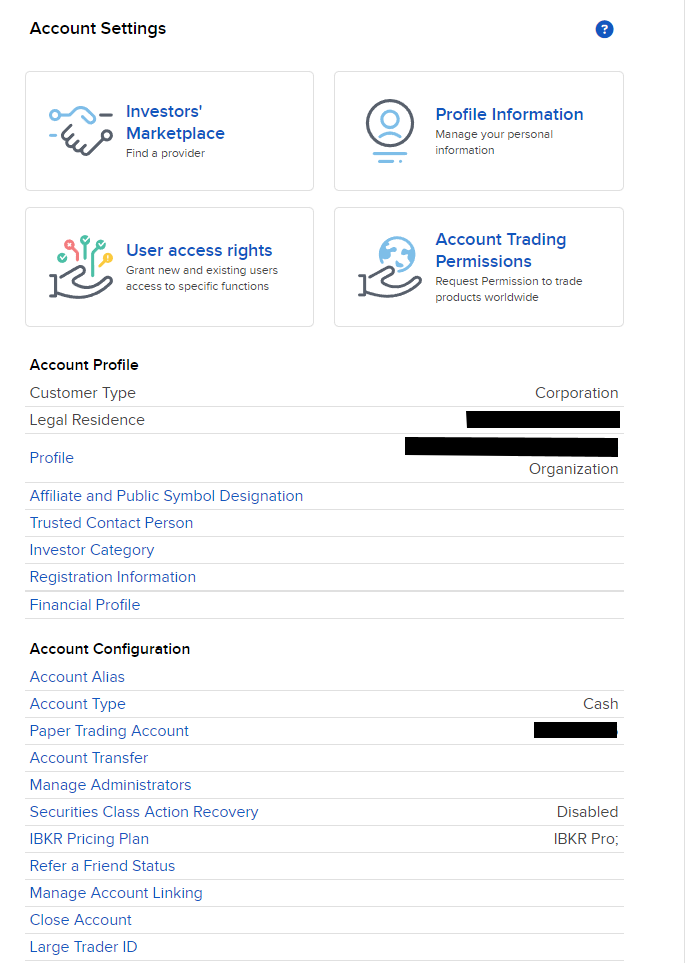 When steps 1 to 4 are done, your Account Configuration should look like this: Account Type Cash (if you are under $25k) and IBKR Pricing Plan IBKR Pro.
TWS or IB Gateway
TradeLabs works with both programs. Both give the app the same API. IB Gateway is the lighter one: it has no charts and no trading windows.
| Choose | When |
|---|---|
| IB Gateway | You find TWS heavy, or the computer runs TradeLabs all day. |
| TWS | You also want to trade by hand in its windows, or check orders there. |
You do not pick the program in TradeLabs. The app sends only the Mode, Live or Paper. The plugin checks which port answers and uses that one. Install one program, sign in, and TradeLabs finds it.
The Mode picks the pair. The plugin uses the port that answers.
| Mode | TWS port | IB Gateway port |
|---|---|---|
| Live | 7496 | 4001 |
| Paper | 7497 | 4002 |
A Paper account never uses a live port. A Live account never uses a paper port.
If TWS and IB Gateway are both open in the same mode, the plugin keeps the port it used last. If it has no last port, it uses TWS.
Keep IB Gateway on its default ports, 4001 and 4002. The plugin cannot find a custom port. The app has no setting for one.
The API settings are the same in both programs. Only the menu path differs.
| Setting | TWS | IB Gateway |
|---|---|---|
| Open the API settings | Edit → Global Configuration → API → Settings | Configure → Settings → API → Settings |
| Enable ActiveX and Socket Clients | Tick it | Tick it |
| Read-Only API | Untick it | Untick it |
| Trusted IP addresses | Add 127.0.0.1 | Add 127.0.0.1 |
Step 6 shows each setting in detail.
5. Install TWS or IB Gateway
Install one of IBKR’s two desktop programs on the same computer that runs TradeLabs.
TWS is IBKR’s full trading platform. You can see your orders and positions in it, which helps you confirm TradeLabs works.
-
Go to the Interactive Brokers TWS download page.
-
Download the version for your operating system, Windows or macOS.
-
Run the installer and follow its steps.
-
Open TWS and sign in. The login screen has a Live Trading / Paper Trading switch. The mode you sign into must match the Mode in TradeLabs (step 7).
TWS listens on port 7496 in live mode and 7497 in paper mode by default.
IB Gateway is a lighter version of TWS. It has no charts and no trading windows. It uses less memory.
-
Download IB Gateway from the Interactive Brokers website and install it.
-
Sign in. Choose IB API (not FIX CTCI) and Live or Paper.
-
Open Configure → Settings → API → Settings and set the API options in step 6.
IB Gateway listens on port 4001 in live mode and 4002 in paper mode by default. Do not change these ports. TradeLabs finds them by itself.
TradeLabs works with TWS on both Windows and macOS. There can be small differences between the two. If you hit something Mac-specific, tell support.
6. Enable the API in TWS or IB Gateway
Out of the box, TWS and IB Gateway do not accept connections from other programs. These settings let TradeLabs in. The steps below use TWS menu names. For IB Gateway, open Configure → Settings → API → Settings and use the same options. If you are setting up for the first time, do this in a Paper Trading login first, confirm TradeLabs connects, then repeat it in your live login. TWS keeps separate settings for live and paper.
The short version: socket clients on, trust localhost, confirm the port.
-
In TWS, open the settings: click the gear icon in the top-right corner, or use File → Global Configuration (Edit → Global Configuration on some layouts).
-
In the left-hand tree, expand API and click Settings.
-
Tick Enable ActiveX and Socket Clients. Without this, TradeLabs cannot reach TWS at all.
-
Make sure Read-Only API is unticked. With it ticked, TradeLabs can read your account but every order it sends is rejected.
-
Check the Socket port: 7496 in a live login, 7497 in a paper login. In IB Gateway, it is 4001 (live) or 4002 (paper). These are the defaults, so do not change this value.
-
Leave the other defaults as they are. The screenshot below shows the options that should stay ticked, such as Download open orders on connection.
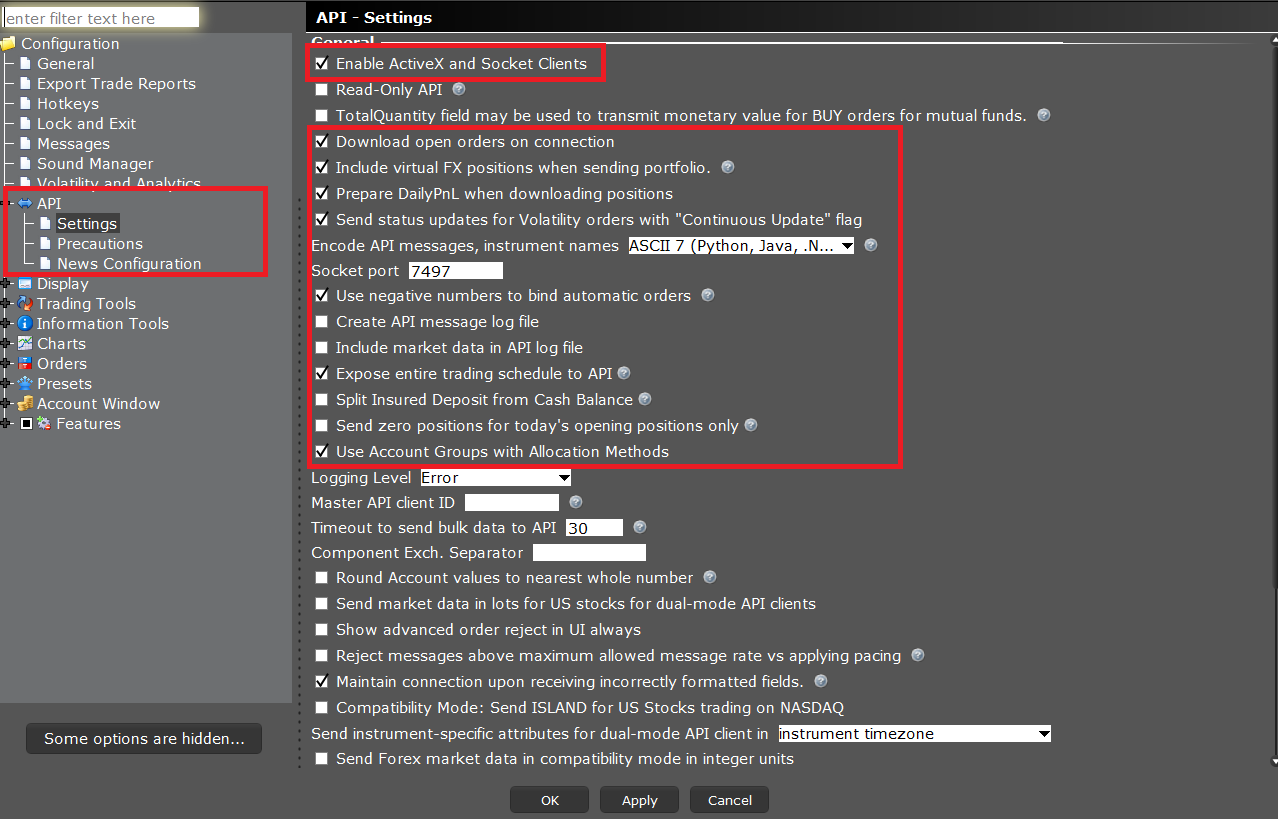 API → Settings in a paper login, which is why the port reads 7497. The top box is the switch you must turn on. The larger box shows the defaults that should stay ticked. Note that Read-Only API is off.
Then scroll to the bottom of the same page to set who is allowed to connect:
-
Untick Allow connections from localhost only.
-
Under Trusted IPs, click Create and add
127.0.0.1. This is your own computer, the address TradeLabs connects from. -
Click Apply, then OK.
-
Restart TWS or IB Gateway so the API settings take effect.
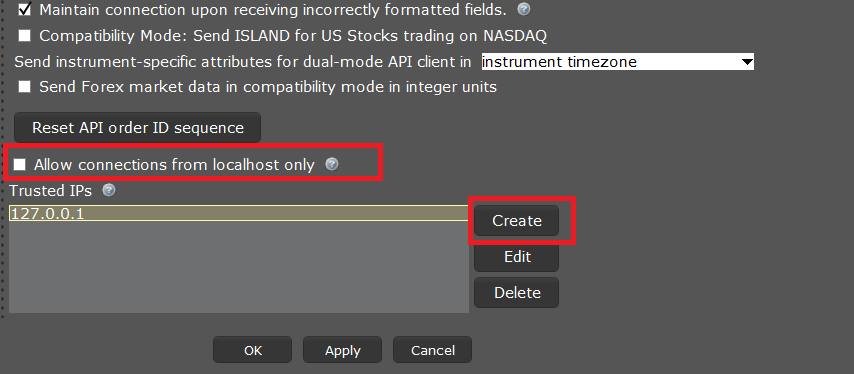
127.0.0.1 in Trusted IPs lets TradeLabs connect without TWS stopping to ask you each time.
Leaving Allow connections from localhost only ticked also works, because TradeLabs always connects from the same computer. Adding 127.0.0.1 as a trusted IP is what stops TWS from popping up an “Accept incoming connection?” prompt, and it matches the setup support will ask about. TradeLabs cannot connect to TWS running on a different computer.
Keep TWS or IB Gateway running
TradeLabs can only trade while TWS or IB Gateway is open and signed in. If the program closes, signals arrive but orders have nowhere to go.
- Daily restart: TWS and IB Gateway restart once a day. In Lock and Exit, choose Auto restart and set a time outside market hours. The program then restarts without asking for your password.
- Weekly sign-in: IBKR needs a full sign-in about once a week, usually on Sunday. IB Gateway needs it too. Check that the program is signed in before the market opens on Monday.
- Sleep: keep the computer awake during trading hours. A sleeping computer drops the connection.
7. Connect it in TradeLabs
With TWS or IB Gateway signed in and the API enabled, add the account in the TradeLabs Companion.
-
Open the Brokers page, find the Interactive Brokers card, and click Add account.
-
Set Mode to match how TWS or IB Gateway is signed in:
- Live: real trading (port 7496 for TWS, 4001 for IB Gateway)
- Paper: practice (port 7497 for TWS, 4002 for IB Gateway)
-
Give the account a Label if you want a name that is easy to recognize.
-
Click Save account. TradeLabs connects to TWS or IB Gateway and checks the connection on its own. There is no separate test step.
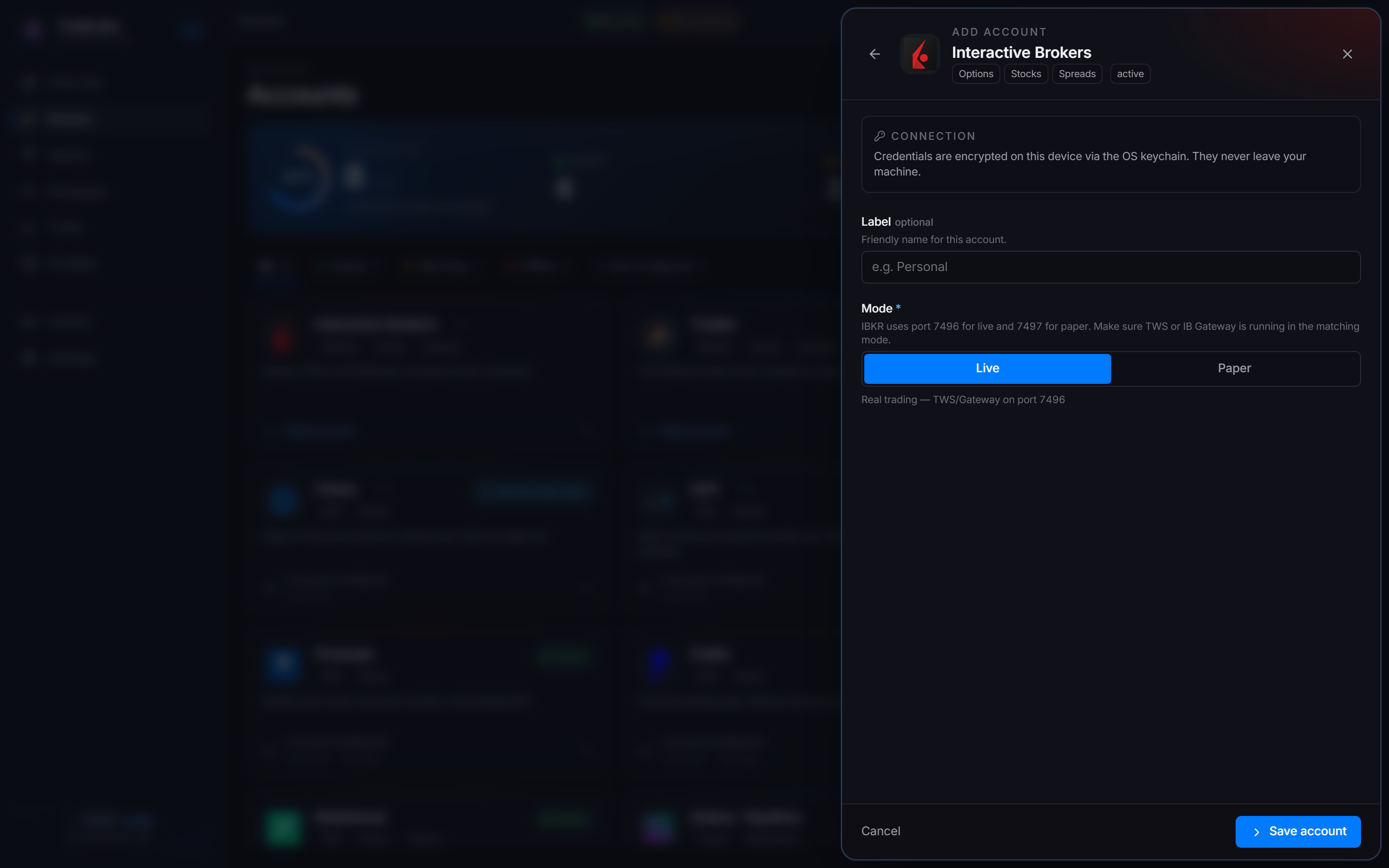
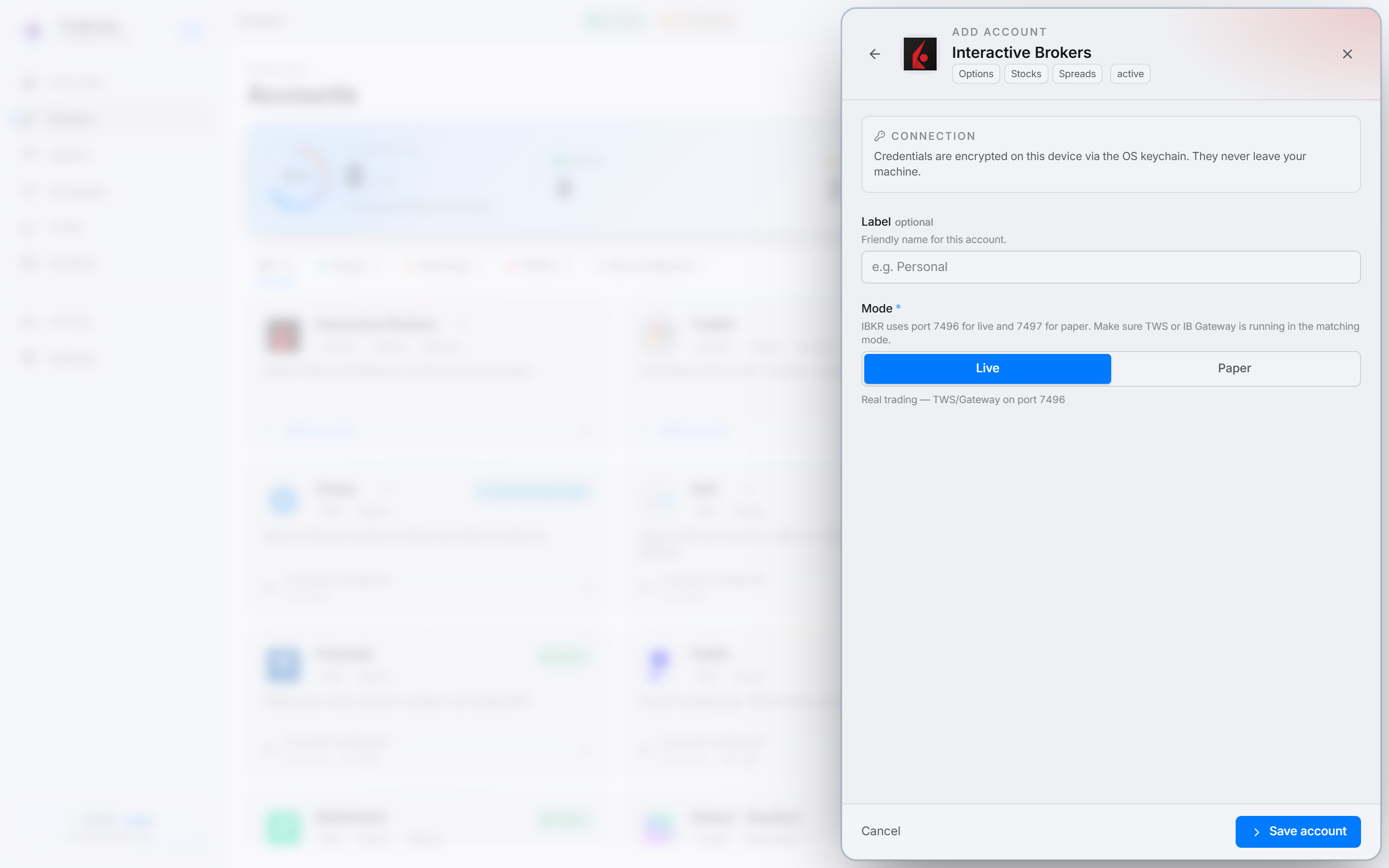 Set Mode to Live or Paper to match how TWS or IB Gateway is signed in. TradeLabs finds the port by itself.
To re-check the link later, open the account row menu and choose Check connection.
The mode here must match the mode TWS or IB Gateway is signed into. A Live account in TradeLabs only uses live ports. If the program is signed into paper, no live port answers and the connection fails. The error can say the API setting is off when it is not. Each program runs in one mode at a time. If you switch modes in TradeLabs, sign out of the program and sign in again with the matching mode.
Interactive Brokers supports one connection per computer, so you add a single Interactive Brokers account.
Fixing common problems
“Could not reach TWS. Check that TWS or IB Gateway is running and that “Enable ActiveX and Socket Clients” is on.” Work through these in order:
- TWS or IB Gateway is open and signed in, not sitting on the login screen.
- The Mode in TradeLabs matches the login (Live: 7496 or 4001, Paper: 7497 or 4002). This is the most common cause, and it produces this exact message.
- Enable ActiveX and Socket Clients is ticked in that login’s API settings. Live and paper have separate settings.
- On IB Gateway, the socket port is still the default, 4001 or 4002. TradeLabs cannot find a custom port.
- You restarted the program after changing the API settings.
“Another IBKR API session is holding client id…” Another program is already connected to TWS on the ID TradeLabs uses. That is often a second copy of TradeLabs, or another trading tool or script using the IBKR API. Close it, or turn the broker off in TradeLabs and sign in to TWS again.
“Market price data is not available.” IBKR has no live quote to give TradeLabs. Check that OPRA (options) and Cboe One (stocks) are active under Market Data Subscriptions (step 3). On a paper account, check that market data sharing with the paper account is turned on.
TradeLabs connects but every order is rejected. Read-Only API is ticked. IBKR refuses orders with code 321. Untick it under API → Settings, apply, and restart the program.
TWS or IB Gateway keeps asking “Accept incoming connection?”
Add 127.0.0.1 under Trusted IPs (step 6), then click Apply.
Trades blocked for Pattern Day Trading. Your margin account is under $25,000 and hit the day-trade limit. Switch to a cash account (step 4).
It worked yesterday and stopped today. TWS or IB Gateway restarted or signed you out overnight. Sign in again. Set Auto restart under Lock and Exit so it comes back by itself.