Get Started
Install on a Mac
Install the TradeLabs app on an Apple Silicon Mac, get past the first-open check, and keep it up to date by hand.
TradeLabs runs on Apple Silicon Macs as well as on Windows. It is the same app: the same brokers, the same strategies, the same dashboard. This page covers the parts that are different on a Mac: the download, the first open, updates, and where to look when something goes wrong.
If you have not made your account yet, start with Install & Sign In and come back here for the install step.
What you need
| Mac | Apple Silicon (M1 or newer). Intel Macs are not supported. |
| macOS | 14 (Sonoma) or later |
| Browser | Google Chrome installed in your Applications folder. Browser-based brokers (Chase, Fidelity, SoFi, WellsTrade) sign in through it. |
| Memory | 8 GB RAM. Each browser-based broker and each memecoin position being price-checked uses its own Chrome tab. |
| Internet | A stable connection. Trades only go out while the app is online. |
| Uptime | The app has to be running to trade, so set the Mac not to sleep during market hours. |
Not sure which chip you have? Open the Apple menu and click About This Mac. The Chip line says Apple M1, M2, M3 or M4 on a supported Mac. If it says Intel, the app will not run.
Install the app
The screenshots below show the RSA+ app on macOS 26. The Copy Trading app looks the same, with its own name in every dialog.
1. Download the build for your plan
Sign in to dashboard.tradelabs.org, click Download in the top bar, and choose macOS. Pick the app that matches your plan: TradeLabs Copy Trading or TradeLabs RSA+. The file is named TradeLabs Copy Trading-<version>-arm64.dmg or TradeLabs RSA+-<version>-arm64.dmg.
Copy Trading and RSA+ are two separate apps, and only one of them can be installed at a time. Install the one that matches your plan. If you change plans later, replace the app: see Move to the RSA+ app.
2. Drag it into Applications
Open the .dmg. A window shows the app on the left and your Applications folder on the right. Drag the app onto the folder and wait for the copy to finish, then eject the disk image from the Finder sidebar.
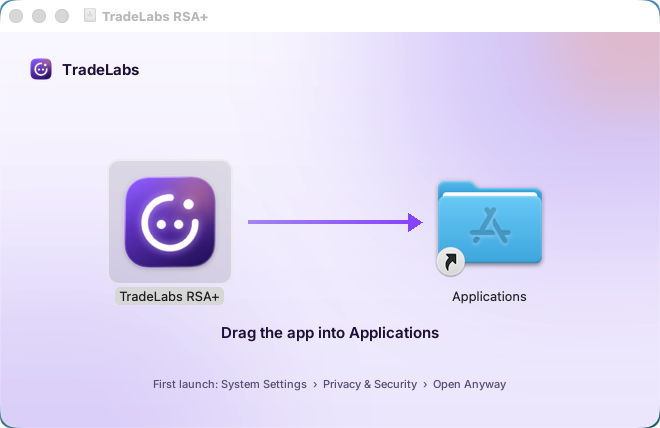 The disk image window. Drag the app onto the Applications folder. Do not run it from inside the disk image.
3. Open it once, and let macOS stop it
Open the app from Applications. macOS refuses with the alert below. That is expected on every Mac, every version, and the next step fixes it.
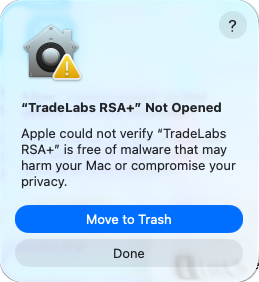 The first open. Move to Trash is the highlighted button. Click Done instead.
Click Done, the grey button at the bottom. Move to Trash is the blue, highlighted one, and it deletes the app you just copied. Pressing Return also triggers Move to Trash, so click with the mouse.
The app is signed with TradeLabs’ own certificate rather than an Apple Developer ID, so macOS treats it as unverified until you allow it. The old shortcut, right-click then Open, is not enough on macOS 15 and later: it shows the same alert again.
4. Allow it in Privacy & Security
Open System Settings and click Privacy & Security in the sidebar. Scroll all the way to the bottom, past every permission list, to the Security section. Under Allow applications from, a line says TradeLabs was blocked to protect your Mac. Click Open Anyway next to it.
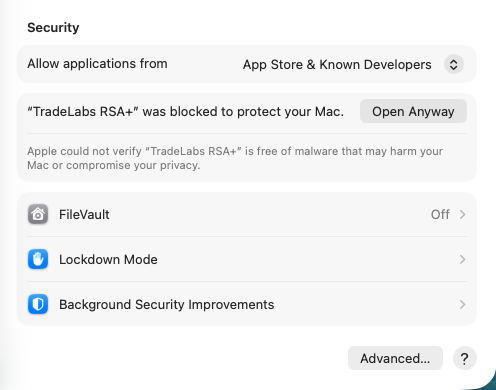 The Security section is the last thing in the pane, below FileVault. The blocked line is only there for about an hour after step 3.
macOS asks once more. Move to Trash is highlighted again. Click Open Anyway, the middle button.
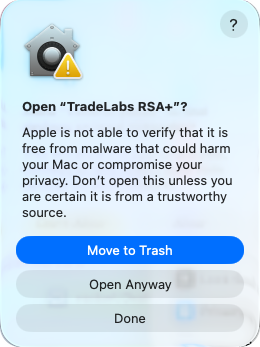 Click Open Anyway, not the highlighted Move to Trash.
Then macOS asks for an administrator’s name and password. Type your Mac login password, or use Touch ID, and click OK.
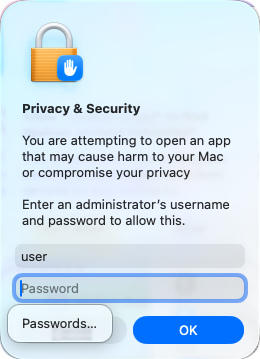 Your Mac password, not your TradeLabs one.
The app opens. You only do this once per version.
5. If macOS asks about your keychain
On some Macs the app’s first start brings up one more prompt: whether TradeLabs may use your keychain, naming TradeLabs Copy Trading Safe Storage or TradeLabs RSA+ Safe Storage. If you see it, type your Mac login password and click Always Allow. That is where the app keeps the key that encrypts your settings and broker logins, and Always Allow stops it asking on every launch. If you do not see it, nothing is wrong: go on to the next step.
6. Sign in
The app opens on its sign-in screen. Sign in with your TradeLabs email and password. The setup wizard then runs exactly as it does on Windows: see Sign in and run the wizard.
 You are in. The sign-in form below this header takes the email and password from your dashboard account.
Updating
The Mac app updates itself, the same as on Windows. New versions download in the background, and the app checks each download before it offers it.
- When a new version is ready, the update card at the bottom of the left rail says the update is ready to install. With Automatic updates on (Settings → General → Updates), it installs when your bots are idle. To update sooner, click Install now.
- The app makes sure the update is signed with the TradeLabs build certificate. Then it puts the new version in Applications in place of the old one and restarts.
- When the new version opens for the first time, macOS can ask if it can use your keychain. Click Always Allow. If you click Deny, the app cannot read your saved logins and you are signed out.
If a download does not pass the check, the app does not install it. The card says Not installed and gives the reason, and your current version keeps running. Click Check again to get a new download.
Your settings, strategies and broker logins stay where they are. They live outside the app, so an update does not touch them.
If the app is not in Applications
The app can replace itself only when it runs from Applications. If you opened it from Downloads, from the disk image or from a different folder, the update card shows Show in Finder instead of installing:
- Click Show in Finder. Finder shows the downloaded update.
- Quit TradeLabs.
- Drag the new app onto Applications. When macOS asks, choose Replace.
- Open the app from Applications. If macOS blocks it, allow it in Privacy & Security as in step 4 above.
After that, updates install themselves. A Mac build from before 2.0.0-beta.22 cannot install updates itself, so install beta.22 this way one time.
Interactive Brokers on a Mac
For Open IB Gateway for me to work, install IB Gateway in your Applications folder, either /Applications or ~/Applications. The app looks in those two places and nowhere else. The rest of the setup is the same as on Windows: see Interactive Brokers.
If something goes wrong
Open Settings → Support in the app. Under Recent activity, click Send next to the day the problem happened and describe what went wrong. The log goes straight to the dev team, who can look at it right away. You never need to find a log file yourself, on Windows or on a Mac. For everything else, see Common problems below and the FAQ.
Common problems
The app will not open, even after Open Anyway. Check that you downloaded the arm64 build and that the Mac is Apple Silicon (Apple menu, then About This Mac, shows the chip). Intel Macs cannot run it.
Open Anyway is not in Privacy & Security. The blocked line sits at the very bottom of the pane, below FileVault, and it only stays for about an hour after a blocked open. Open the app from Applications once more, click Done on the alert, and go straight back to Privacy & Security and scroll to the bottom.
I clicked Move to Trash. The app is in the Trash, not gone. Open the Trash, drag the app back into Applications, and start again from step 3.
A browser-based broker never gets past Warming. Google Chrome has to be installed in /Applications. Install it from google.com/chrome and sign the broker in again.
A keychain prompt comes back every launch. You clicked Allow instead of Always Allow. Quit the app, open it again, and choose Always Allow this time.
Nothing traded overnight. The Mac went to sleep. The app only trades while it is running and the Mac is awake, so turn off sleep during market hours, or run it on a machine that stays on.